How to Let ChatGPT, Perplexity & Claude Crawl Your Site
Allow the AI answer bots in your robots.txt so ChatGPT, Perplexity and Claude can cite you — with exact steps for WordPress, Wix, Squarespace, Webflow, Shopify and custom sites.

On this page
If ScoutRival’s Site Audit flagged “Answer-engine bots allowed in robots.txt,” it means one or more of the crawlers that fetch pages at answer time for ChatGPT, Perplexity or Claude is being told to stay out — so those engines may never see your content, even though your site works perfectly for human visitors. The good news: this is one of the most direct on/off switches in AI visibility, and fixing it is a plain-text edit you can make in a few minutes. This guide shows you exactly how, on every major platform, no coding required.
Which bots actually matter for AI answers
Here’s the part most business owners miss: the AI world runs on several different crawlers, and they do very different jobs. Blocking one doesn’t block the others, and — crucially — the bots that feed live AI search answers are not the same as the bots that gather data for future model training.
The set you care about for showing up in answers today is the retrieval set — the bots that fetch a page so an engine can read, summarise and cite it in a response:
- OpenAI —
OAI-SearchBot(builds ChatGPT’s search index) andChatGPT-User(fetches a page on demand when a user’s question needs it). - Perplexity —
PerplexityBot(indexing) andPerplexity-User(live user-triggered fetch). - Anthropic —
Claude-SearchBot(indexing for Claude’s search) andClaude-User(on-demand fetch).
Anthropic is explicit that these are independent controls, and that blocking Claude-SearchBot “may reduce your site’s visibility in user search results.” That’s the whole risk in one sentence: block a search bot and you can disappear from that engine’s answers without any other warning sign.
Separately, there are training bots — GPTBot, ClaudeBot, Google-Extended and CCBot — which collect content to train future models. Blocking those is a legitimate content-licensing decision and does not remove you from live AI answers. We cover that trade-off in Should You Block GPTBot & ClaudeBot? — but don’t confuse the two. The single most common way to break your AI visibility is a security plugin whose “block AI” preset quietly disallows the search bots along with the training ones.
Why one stray line does so much damage
robots.txt is the first file a crawler looks for. A rule like this:
User-agent: *
Disallow: /
tells every well-behaved bot to stay off your entire site. The AI answer bots honour it, so they never even reach the page where your allow rules live. And because Googlebot might be exempted elsewhere (or the block was aimed only at “AI”), your classic Google rankings can look completely healthy while you’re invisible inside ChatGPT and Perplexity. There’s no red flag in Google Search Console for this — which is exactly why it hides for months.
The usual culprits are a security or “block AI scraper” plugin preset, a robots.txt copied over from a staging site (where everything was disallowed on purpose), or a well-meaning developer who blocked “bots” broadly. All are easy to reverse once you know what to look for.
Step 1 — Read your current robots.txt
Open a browser and go to:
https://yourdomain.com/robots.txt
Read it top to bottom and look for two things:
- A
User-agent: *group withDisallow: /(that blocks everyone). - Any of the six bot names above sitting under a
Disallow: /rule.
If you see either, that’s your problem. If the file is empty or missing entirely, the bots are technically allowed — but it’s still worth adding explicit Allow rules so a future plugin can’t quietly re-block them.
Step 2 — Allow the six answer bots
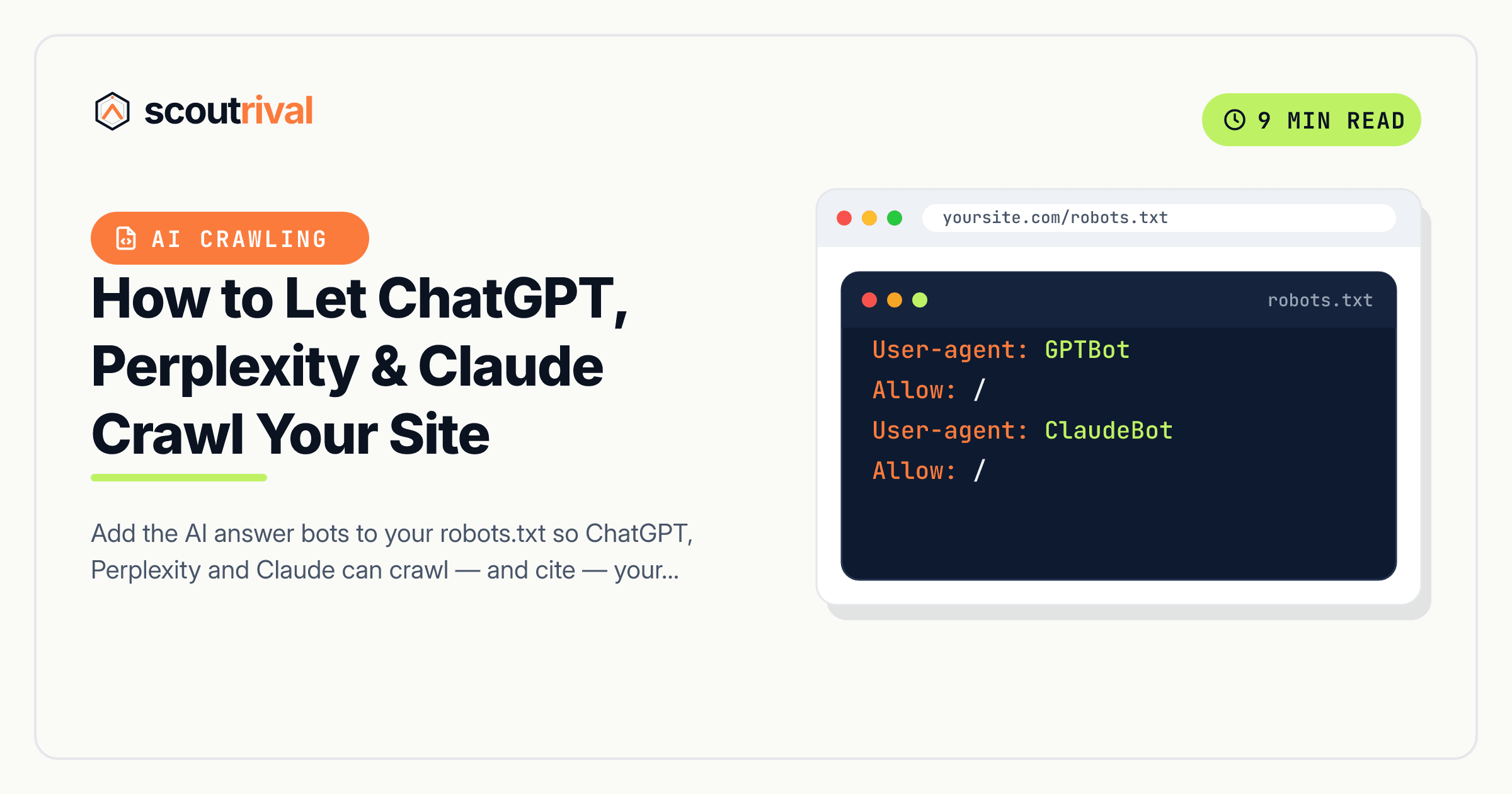
The safest, clearest fix is to name each bot and explicitly allow it. Paste this block into your robots.txt (keep any legitimate Disallow rules you already have for admin or cart URLs):
User-agent: OAI-SearchBot
Allow: /

User-agent: ChatGPT-User
Allow: /

User-agent: PerplexityBot
Allow: /

User-agent: Perplexity-User
Allow: /

User-agent: Claude-SearchBot
Allow: /

User-agent: Claude-User
Allow: /
Then remove any blanket User-agent: * + Disallow: / that a plugin injected. OpenAI can take about 24 hours to pick up the change, so don’t panic if a live test still shows a block the same afternoon.
Now here’s how to actually edit the file on your platform.
WordPress (Yoast or Rank Math)
WordPress serves a virtual robots.txt, but your SEO plugin lets you control it:
- Yoast SEO: WP admin → Yoast SEO → Tools → File editor → edit the robots.txt box.
- Rank Math: WP admin → Rank Math → General Settings → Edit robots.txt.
- Paste the six allow groups above and Save.
- While you’re here, go to Settings → Reading and confirm “Discourage search engines from indexing this site” is unchecked — that one box blocks everyone.
- No file editor showing? Your host has disabled file editing. Upload a plain
robots.txtto your site’s root folder (public_html/) via the host’s File Manager or SFTP — a real file overrides the virtual one.
Wix
- Go to your Wix dashboard → Marketing & SEO → SEO Tools.
- Open the Robots.txt Editor.
- Confirm none of the six bots are disallowed; add the allow groups if you want them explicit, and click Save. Wix publishes it automatically.
Squarespace
Squarespace generates and manages robots.txt for you and its default is crawler-friendly, so there’s usually nothing to block. To confirm you’re clear, visit yourdomain.com/robots.txt and check that no rule disallows the AI bots. If you’d previously enabled a page-level “hide from search,” that’s the setting to revisit — Squarespace doesn’t let you hand-edit robots.txt directly.
Webflow
- Open Project Settings → SEO tab.
- In the robots.txt field, paste the six allow groups.
- Click Save changes, then Publish so the file goes live on your real domain (the
*.webflow.iostaging URL is intentionally kept out of search).
Shopify
Shopify auto-generates robots.txt and, since 2021, lets you customise it with a template:
- Go to Online Store → Themes → ⋯ → Edit code.
- Under Templates, add a new template and choose robots.txt (
robots.txt.liquid). - Make sure the AI bots aren’t caught by a broad
Disallow, add explicit allows if you like, and save.
Any other site (custom or unlisted CMS)
- Create a plain-text file named exactly
robots.txt(all lowercase). - Add the six allow groups plus your sitemap line.
- Upload it to your web root — the same folder that serves your homepage — so it’s reachable at
yourdomain.com/robots.txt. It must be at the root, not a subfolder.
Step 3 — Verify it worked
- Reload
https://yourdomain.com/robots.txtand confirm none of the six bots carry aDisallow: /. - For a deeper check, a developer can run
curl -A "OAI-SearchBot" -I https://yourdomain.com— you want a200, not a403. (A block at this level often lives in your firewall or CDN, not robots.txt — see Is Cloudflare Secretly Blocking AI From Your Site?.) - Re-run your ScoutRival Site Audit. The AC1 “answer-engine bots allowed” check should flip to green, and your AI Crawler Access score should tick up.
Common mistakes to avoid
- Blocking the search bots along with the training bots. A “block AI” plugin often disallows all of them. Keep
OAI-SearchBot,Claude-SearchBotandPerplexityBotallowed even if you choose to blockGPTBot/ClaudeBot. - Fixing robots.txt but leaving a firewall block in place. robots.txt can be perfect while Cloudflare or a security plugin returns a 403 to the same bot. If your audit still flags access, check the edge — that’s a separate criterion.
- Editing a robots.txt in a subfolder. Crawlers only read the file at the root.
yourdomain.com/pages/robots.txtdoes nothing. - Expecting an instant change. OpenAI’s crawler can take ~24 hours to re-read your file. Verify the file first, then give it a day.
- Copying a staging robots.txt to production. Staging sites usually block everything on purpose. Always check the live file after a migration.
- Confusing
Disallowwithnoindex. robots.txt controls crawling; it doesn’t remove a page from an index. Snippet-suppression tags are a separate visibility risk — see Noindex & Nosnippet: The Tags Hiding You From AI.
The bottom line
The bots that get you cited in ChatGPT, Perplexity and Claude are a short, specific list — and the difference between showing up and being invisible is often a single line in a plain-text file. Read your robots.txt, make sure none of the six answer bots are disallowed, add explicit allow rules so nothing re-blocks them, and give it a day.
Not sure whether the bots can actually reach your pages? Run a free Site Audit with ScoutRival — it checks your robots.txt and probes your firewall with real bot user-agents, then hands you a plain-English, prioritised fix list for the whole site.
Frequently asked questions
Which AI bots do I need to allow in robots.txt?
Will allowing AI bots hurt my Google rankings?
Is blocking GPTBot the same as blocking ChatGPT search?
How long until AI engines see my updated robots.txt?
Why is my site invisible in ChatGPT but fine on Google?
Do I edit robots.txt differently on Wix or Squarespace?
Nasir Uddin is an SEO consultant and ScoutRival's SEO & Growth Lead. He's spent years helping small businesses climb the search results — and now the AI answers too — and writes about SEO, AI-search visibility, and turning organic traffic into real growth.
Keep reading
All AI & Content →
Stop reading about it. Ship it this week.
ScoutRival turns competitor intel into ready-to-post content and graphics — for a fraction of an agency.