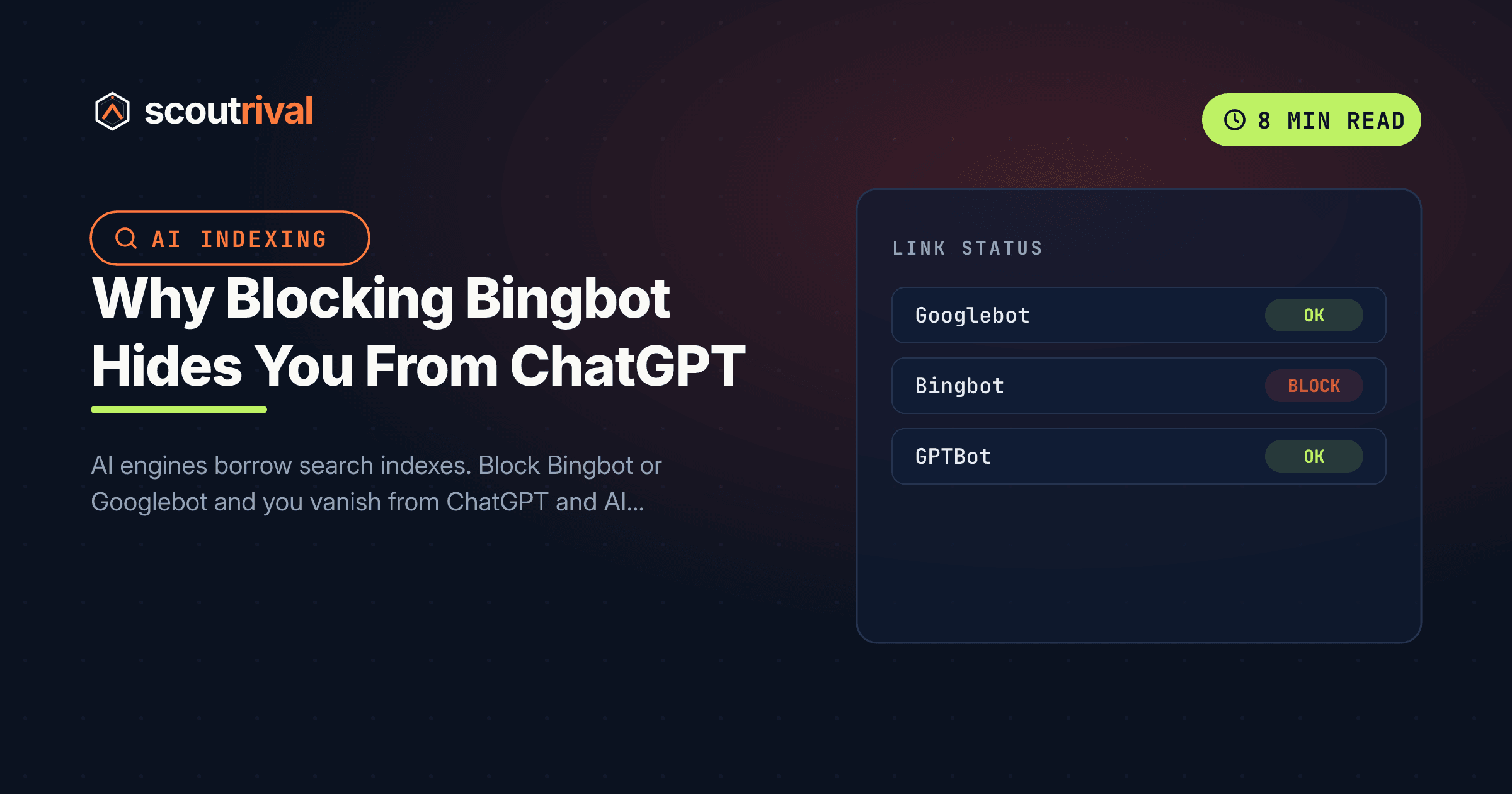
Why Blocking Bingbot Hides You From ChatGPT
AI engines borrow search indexes — block Bingbot or Googlebot and you vanish from ChatGPT and AI Overviews. Fix it on WordPress, Wix, Squarespace, Webflow, Shopify and custom sites.

On this page
If ScoutRival’s Site Audit flagged “Search-index bots allowed (Googlebot + Bingbot),” it means your site is telling Google’s or Microsoft’s classic crawler to stay out — and because the big AI engines build their answers on top of those two indexes, that block quietly drags your AI visibility down with it. This guide explains the connection in plain English and walks you through the fix on WordPress and every other major platform. No coding required for the common causes.
AI engines borrow indexes — that’s the whole story
It’s tempting to think of “AI search” as a separate machine that reads the web on its own. It mostly isn’t. The large answer engines lean on the search infrastructure that already exists:
- ChatGPT’s search layer leans on Bing. When ChatGPT needs live web results, its retrieval draws heavily on Bing’s index. If Bing hasn’t indexed your page, ChatGPT has a hard time finding it to cite — one independent analysis found that roughly 87% of SearchGPT citations matched Bing’s top-ranked results.
- Google’s AI surfaces ride Google’s index. AI Overviews and Gemini’s grounded answers pull from Google’s index. Block Googlebot and you’re gone from those, too.
So the two “boring” classic crawlers — Googlebot and Bingbot — are load-bearing for AI. You can allow every AI answer bot perfectly (see How to Let ChatGPT, Perplexity & Claude Crawl Your Site) and still be invisible in ChatGPT if Bingbot can’t crawl you, because the underlying index has no record of your pages.
Why this usually happens by accident
Blocking Googlebot or Bingbot also tanks your normal search rankings, so it’s usually caught eventually — but owners rarely connect it to the AI damage. The common causes:
- A “coming soon” / maintenance plugin left switched on after launch.
- The WordPress “Discourage search engines” checkbox (Settings → Reading) — one box that blocks everything.
- A copied staging robots.txt, where crawling was disabled on purpose, migrated to production.
- A firewall or CDN rule returning 403s to Bingbot or Googlebot at the network layer (that’s a separate check — see Is Cloudflare Secretly Blocking AI From Your Site?).
None of these are hard to reverse. Let’s rule them out in order.
Step 1 — Check your robots.txt
Open https://yourdomain.com/robots.txt and look for any of these patterns:
User-agent: Googlebot
Disallow: /

User-agent: Bingbot
Disallow: /

User-agent: *
Disallow: /
Any of those blocks the search index you depend on. Note what you find — you’ll clear it in Step 3.
Step 2 — Rule out the sitewide “discourage” switch
Before you touch robots.txt, check the single setting that blocks everything at once.
WordPress: go to Settings → Reading and make sure “Discourage search engines from indexing this site” is unchecked. When that box is ticked, WordPress adds a blanket block and a noindex signal — the fastest way to be invisible to Google, Bing and every AI engine at the same time. This alone fixes a surprising number of “we disappeared” cases.
Hosted platforms have their own version of this toggle — a “hide site from search engines” or “password protect / coming soon” switch. Turn it off once you’re live.
Step 3 — Remove the block on each platform
WordPress (Yoast or Rank Math)
- Yoast SEO: WP admin → Yoast SEO → Tools → File editor → edit the robots.txt box.
- Rank Math: WP admin → Rank Math → General Settings → Edit robots.txt.
- Delete any
Disallow: /underGooglebot,Bingbot, orUser-agent: *. If you want to be explicit, leave a clean permissive file:User-agent: * Allow: / Sitemap: https://yourdomain.com/sitemap_index.xml - Save. Confirm the Settings → Reading box from Step 2 is still unchecked.
Wix
Go to Wix dashboard → Marketing & SEO → SEO Tools → Robots.txt Editor. Remove any rule that disallows Googlebot, Bingbot or all agents, and Save. Also check Settings → SEO → Index this site is turned on.
Squarespace
Squarespace manages robots.txt for you with a crawler-friendly default, so there’s rarely a robots-level block. The thing to check is per-page: open any page’s Settings → SEO and make sure “Hide this page from search engines” is off for the pages you want indexed. Under Settings → Marketing → SEO / Site availability, confirm the site isn’t password-protected or set to “hidden.”
Webflow
Open Project Settings → SEO tab, and in the robots.txt field remove any Disallow: /. Also check Project Settings → Publishing — the “Disable subdomain indexing” option should apply to *.webflow.io staging only, not your live domain. Save and Publish.
Shopify
- Online Store → Preferences: confirm the storefront password page is off and the store isn’t set to restrict search engines.
- If you’ve added a custom
robots.txt.liquidtemplate (Themes → Edit code → Templates), make sure it doesn’t disallow Googlebot or Bingbot. Shopify’s default already allows both.
Any other site (custom or unlisted CMS)
Edit the root robots.txt, remove the Disallow: / on Googlebot/Bingbot/*, and re-upload it to the web root. Turn off any host-level “hide from search engines” toggle. If a firewall is returning 403s to the crawlers, that’s a network-level fix — often a developer or host ticket.
Step 4 — Verify it worked
- Google: open Google Search Console → URL Inspection, paste your homepage, and confirm it says “Crawl allowed: Yes.”
- Bing: open Bing Webmaster Tools → URL Inspection and confirm Bingbot is allowed to crawl the page. (No Bing account yet? It takes about two minutes to import from Google — see Get Indexed in Bing to Show Up in ChatGPT Search.)
- Re-run your ScoutRival Site Audit. The AC2 “search-index bots allowed” check should turn green.
Remember that being allowed to crawl is step one; being actually indexed in Bing is what puts you in reach of ChatGPT’s citations. Once Bingbot can crawl you, make sure your pages are in Bing’s index too.
Common mistakes to avoid
- Treating Bing as optional. For ChatGPT visibility, Bing is not a nice-to-have — it’s the index the answers are built on. “We only care about Google” leaves you invisible in ChatGPT search.
- Fixing robots.txt but leaving the “Discourage search engines” box ticked. That checkbox overrides everything and re-blocks you sitewide. Always check it.
- Allowing crawling but never indexing in Bing. Crawl-allowed ≠ indexed. Import your site into Bing Webmaster Tools so the pages actually enter the index.
- Missing a firewall-level block. robots.txt can say “allowed” while your CDN returns a 403 to Bingbot. If the audit still flags access, check the edge.
- Blocking only the AI bots and assuming Google/Bing are separate. They’re linked — the AI engines read the classic indexes, so all four crawlers matter together.
The bottom line
The two crawlers that feel like “just SEO” — Googlebot and Bingbot — are the foundation the AI engines build their answers on. Block Bingbot and you can vanish from ChatGPT; block Googlebot and you’re out of AI Overviews and Gemini. Check the “Discourage search engines” box, clear any Disallow: / in robots.txt, confirm crawl access in both Search Console and Bing Webmaster Tools, and you’ve reopened the front door for both classic and AI search.
Want to know in one scan whether Google and Bing can actually reach your pages — and whether ChatGPT can cite them? Run a free Site Audit with ScoutRival for a prioritised, plain-English fix list across your whole site.
Frequently asked questions
Why does blocking Bingbot affect ChatGPT?
Does allowing Googlebot and Bingbot help AI visibility or just SEO?
What's the single most common cause of an accidental block?
How do I check if Google and Bing can crawl my site?
I allowed the AI bots but still don't show in ChatGPT — why?
Could a firewall block Bingbot even if robots.txt allows it?
Nasir Uddin is an SEO consultant and ScoutRival's SEO & Growth Lead. He's spent years helping small businesses climb the search results — and now the AI answers too — and writes about SEO, AI-search visibility, and turning organic traffic into real growth.
Keep reading
All AI & Content →
Stop reading about it. Ship it this week.
ScoutRival turns competitor intel into ready-to-post content and graphics — for a fraction of an agency.